3
3
Sending a Market Report is a great way to stay top of mind with your leads and sphere of influence. To learn more about the information included in a Market Report, check out the basic details or metrics tracked.
This tutorial will show you how to create a report for a GROUP of contacts.
📺 Click here for a video tutorial 📺
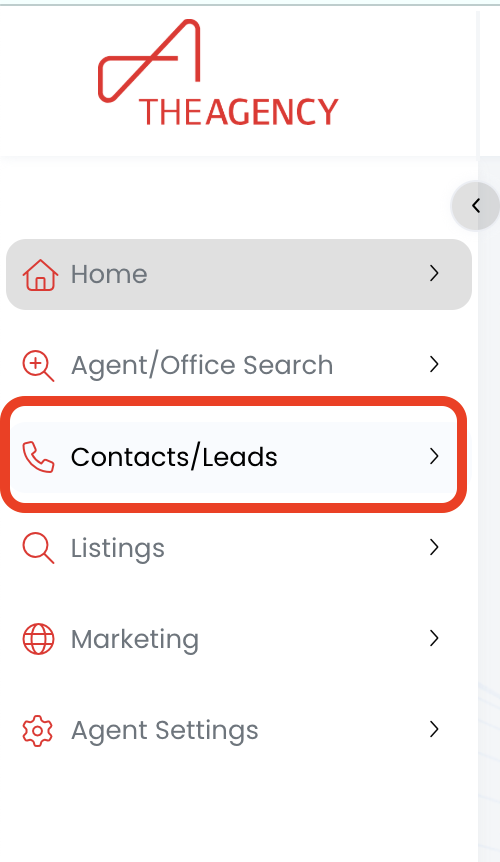
1.) Click on the Contacts/Leads menu
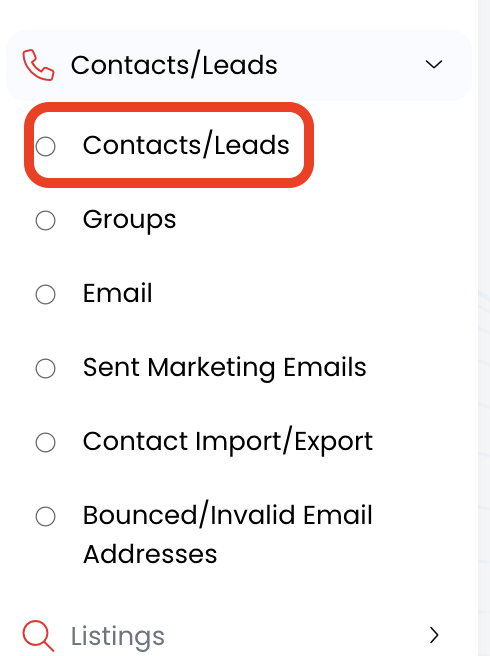
2.) Click on the Contacts/Leads option
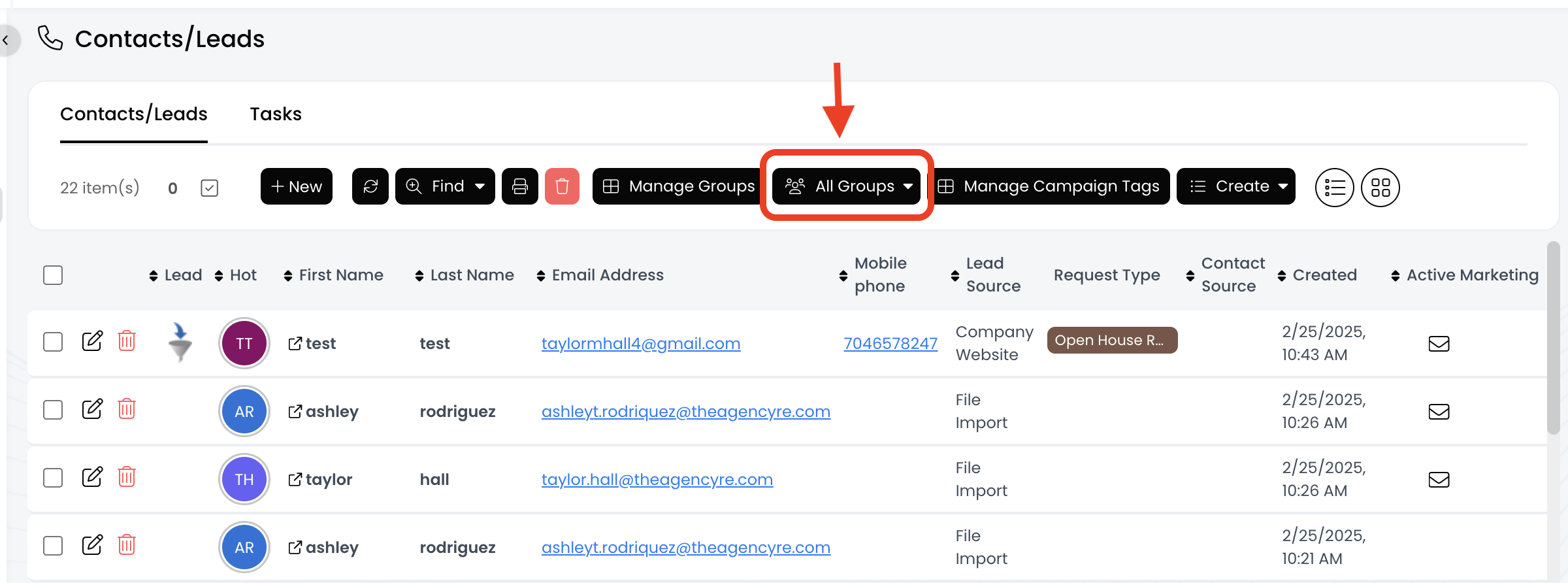
3.) Click on the All Groups button
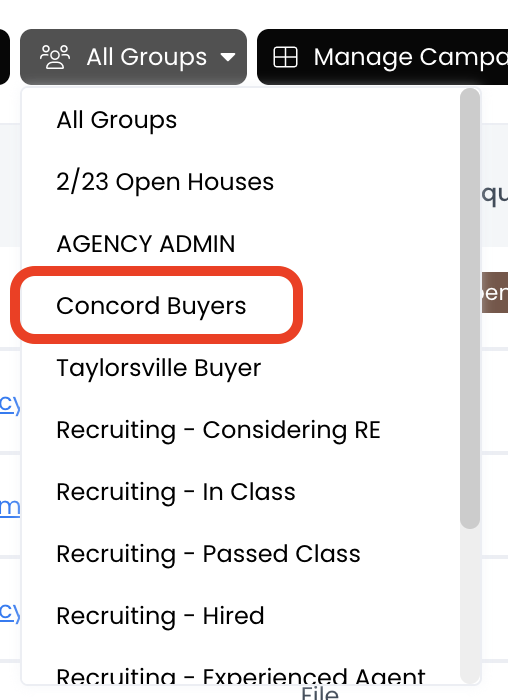
4.) Select the Group you want to send this report to
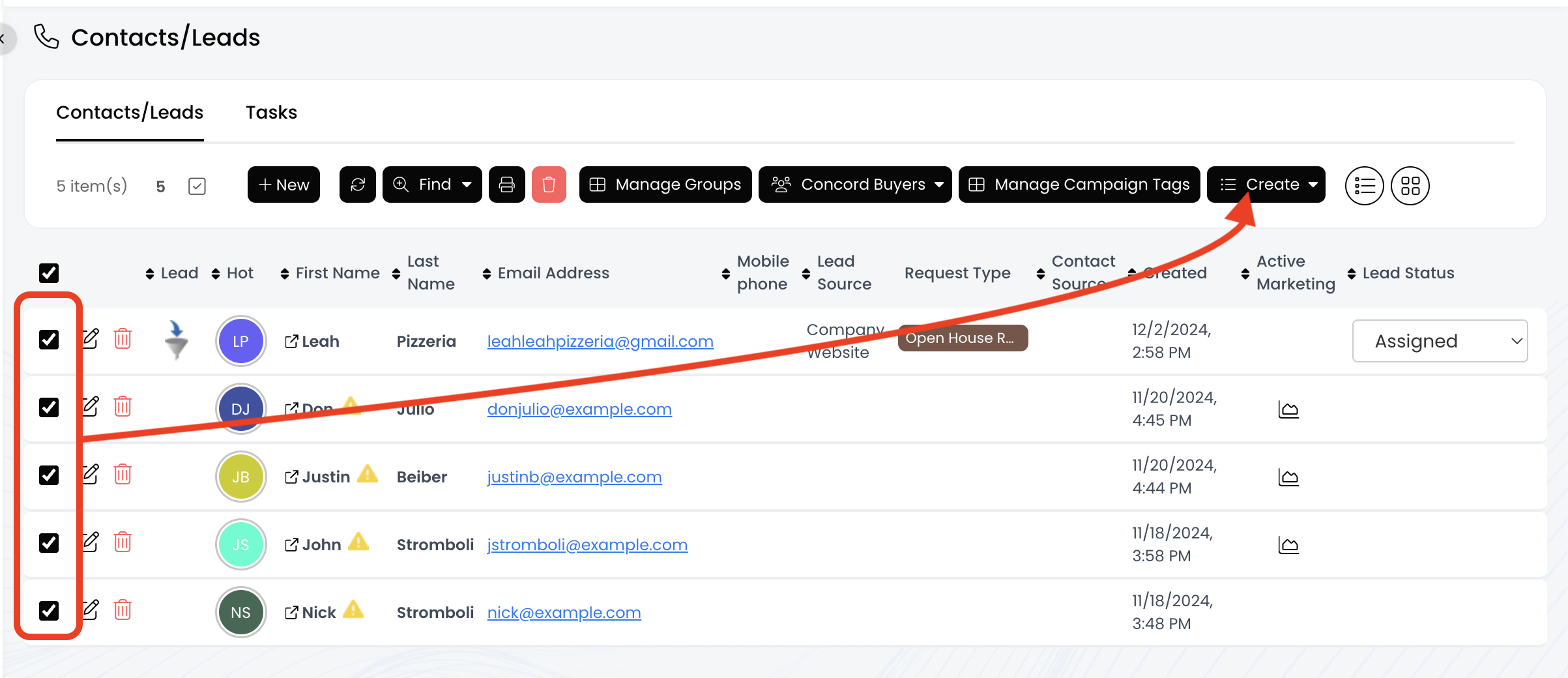
5.) Select the contacts by clicking the checkboxes to the left. Then, click on the Create button
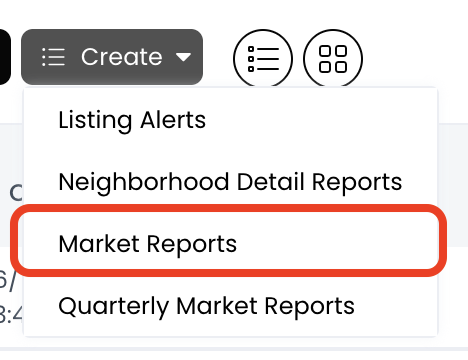
6.) Click on the Market Reports option
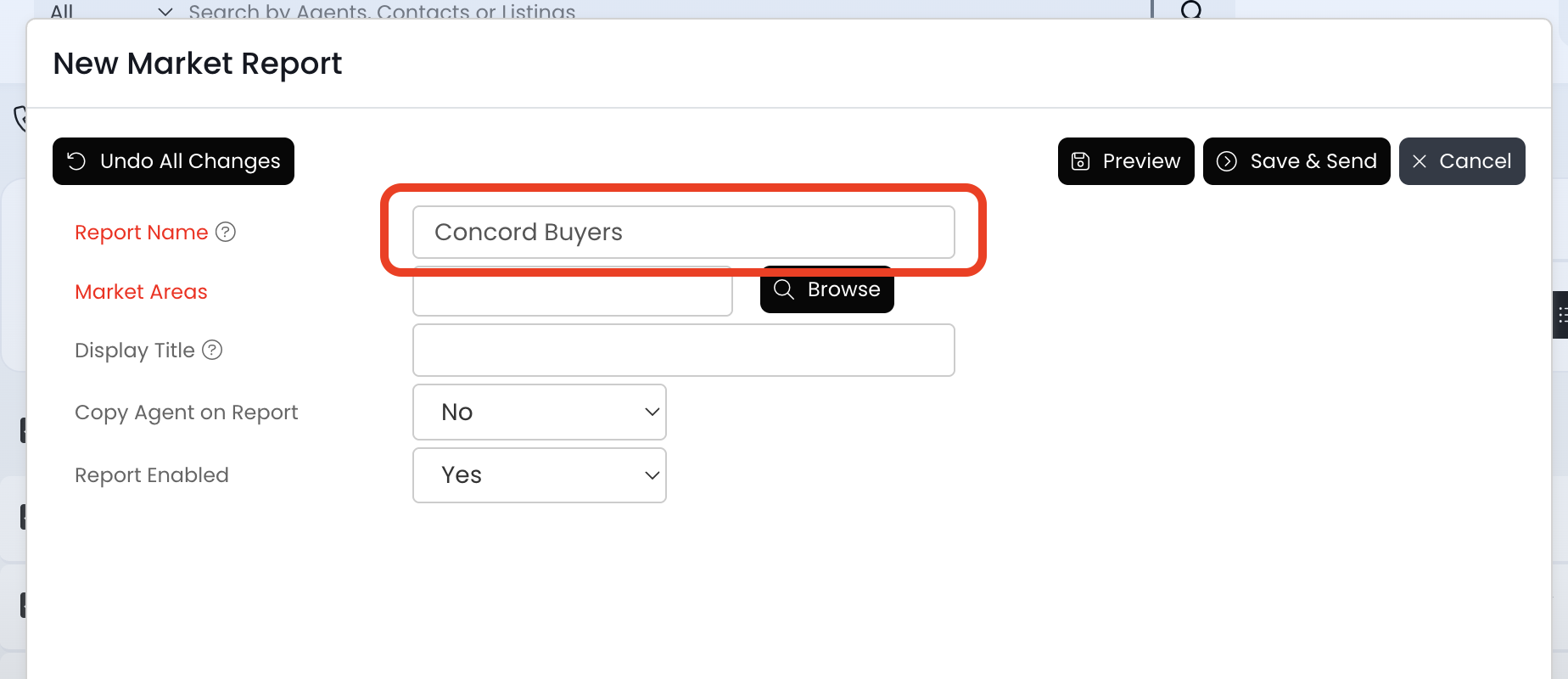
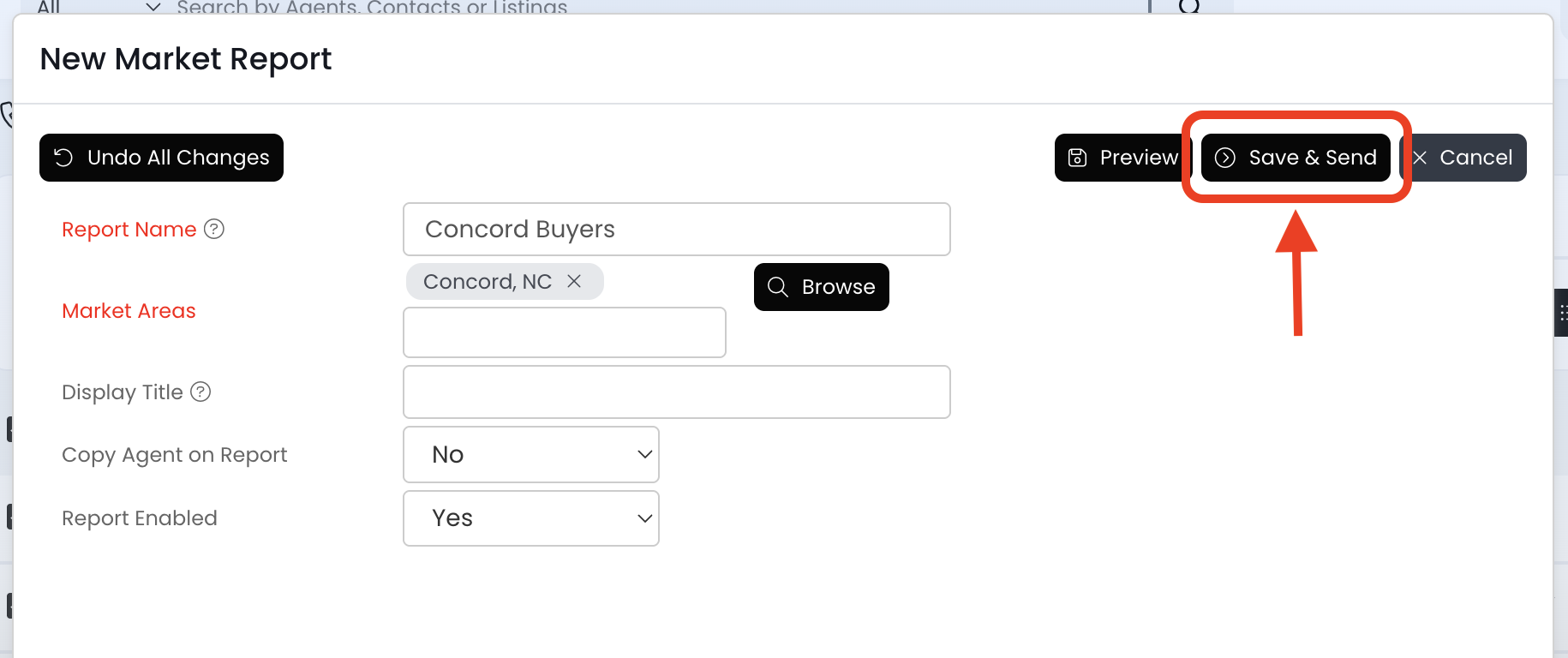
7.) Add a Report Name
- Include the report details like the areas and/or property types
- Exclude the contact's name - The name is automatically added to the end of the Report Name after you save it
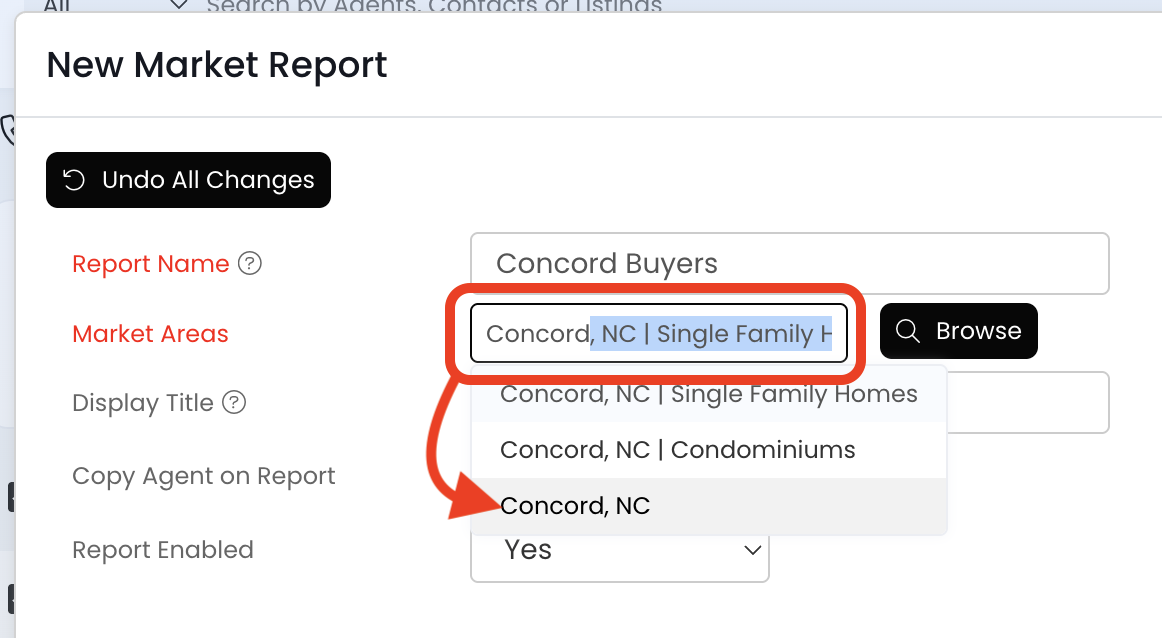
8.) Type the area into the Market Areas field, and then click on the appropriate record that populates underneath to add.
- Including Specific Property Types: Select the option with the property type at the end of the area.
- EXAMPLE: "Concord, NC | Single Family Homes"
- Including All Property Types: Select the option with just the area name.
- EXAMPLE: "Concord, NC"
- More Than One Market Area: We recommend setting up separate reports for each area because the report will be very long with a lot of pages!
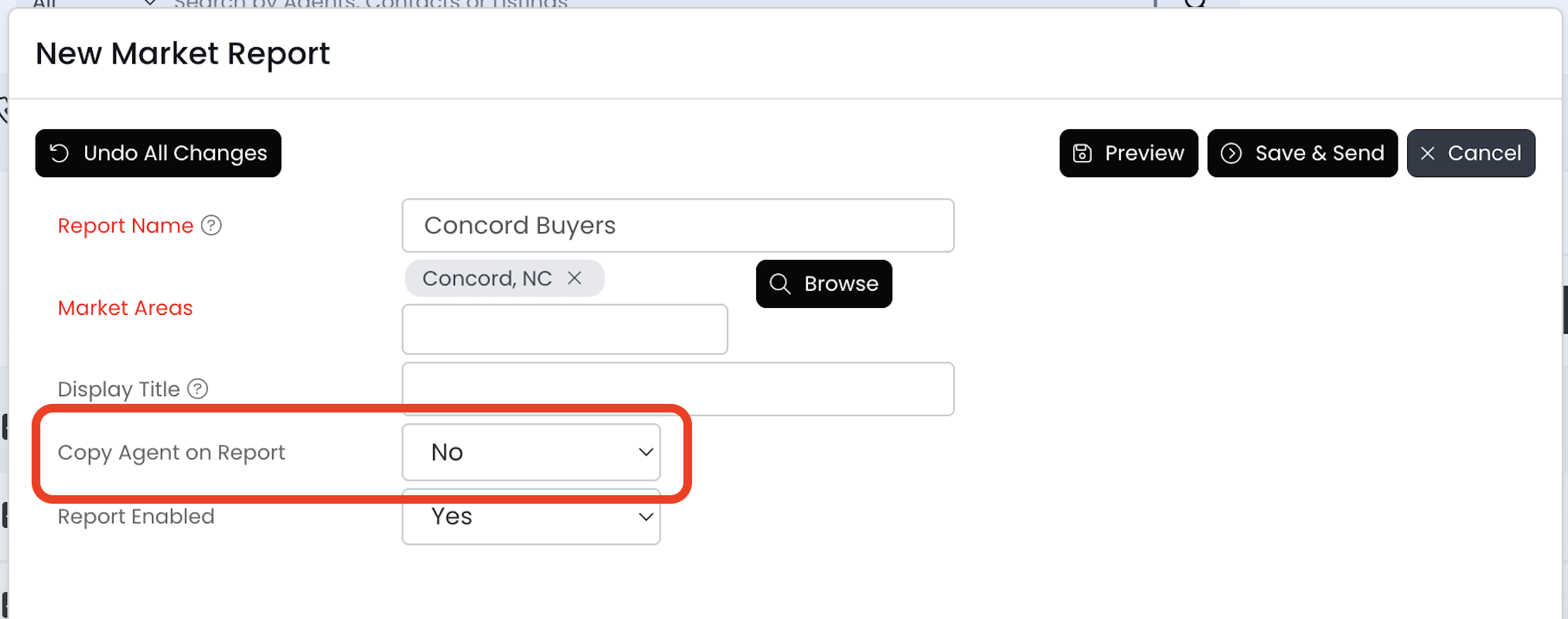
9.) Review the Copy Agent on Report field and make any necessary changes. This field controls your email notifications and always defaults to NO.
- YES: You will receive the market reports by email
- NO: You will not receive the market reports by email
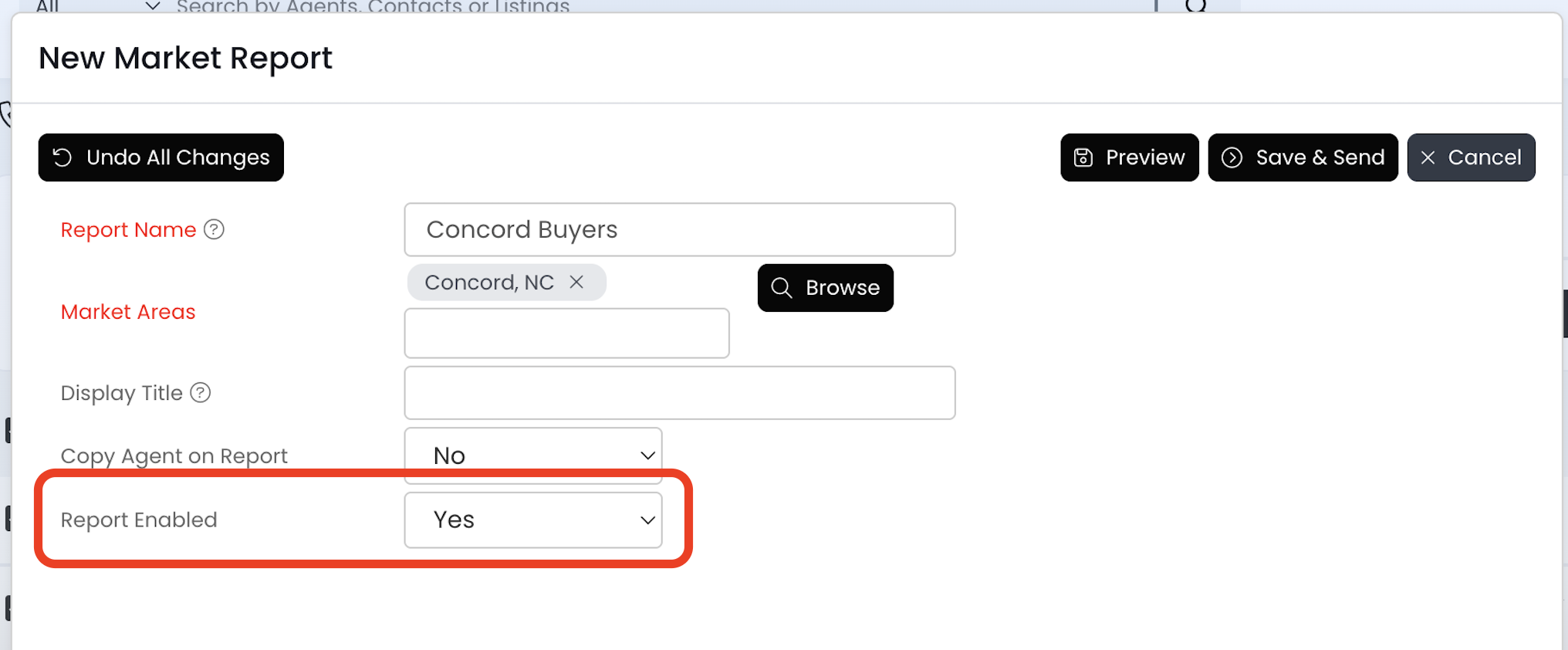
10.) Review the Report Enabled field and make any necessary changes. This field controls the contact's email notifications and always defaults to YES.
- YES: The people listed in the "Contacts" field will receive the market reports by email
- NO: The people listed in the "Contacts" field will not receive the market reports by email
11.) Click the Save & Send button to save the report.
- The contact(s) will receive the most recent market report shortly after saving.
- If you've set the Report Enabled field to NO, the contact(s) will not receive a report.
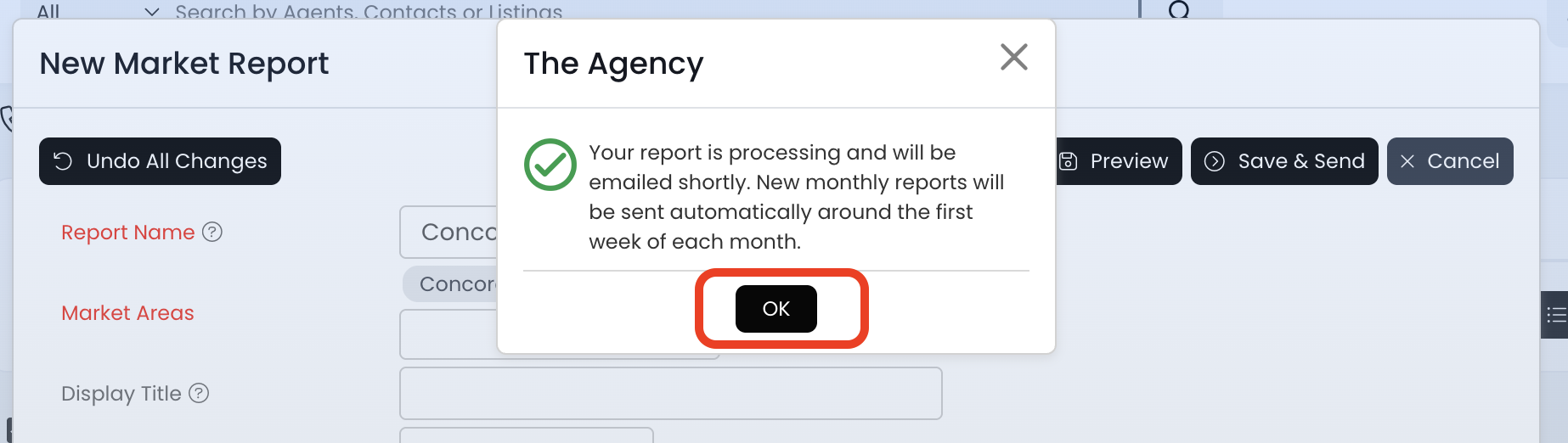
12.) Now you should receive the following pop-up confirming your report has been saved successfully. Click the OK button to exit.
-
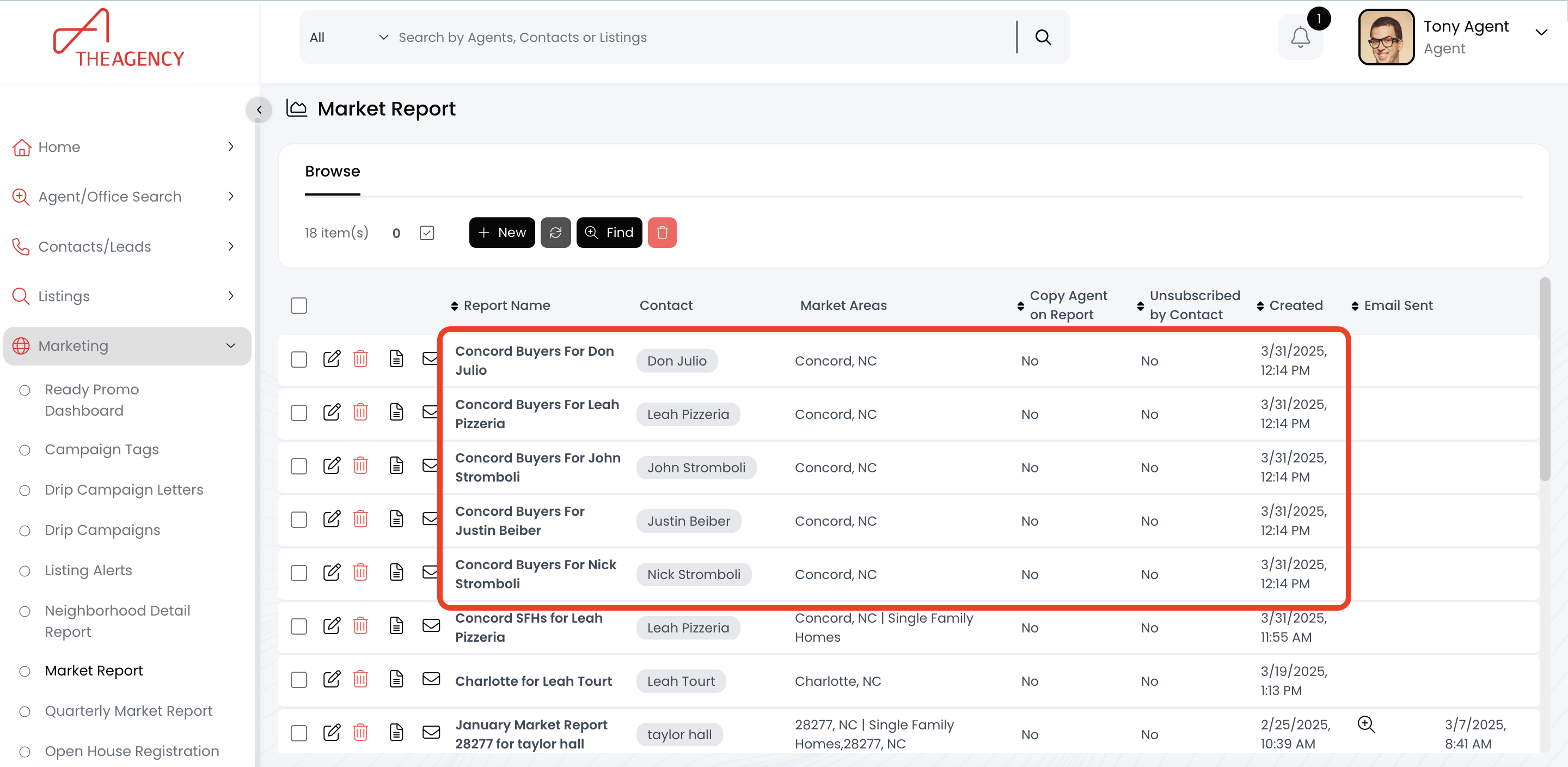
If you go to the Market Reports page, you should see one market report for each contact in the Group.