


Seller Reports: Disabling Email Notifications for a Contact on a Saved Report

May 17, 2025
 5
5
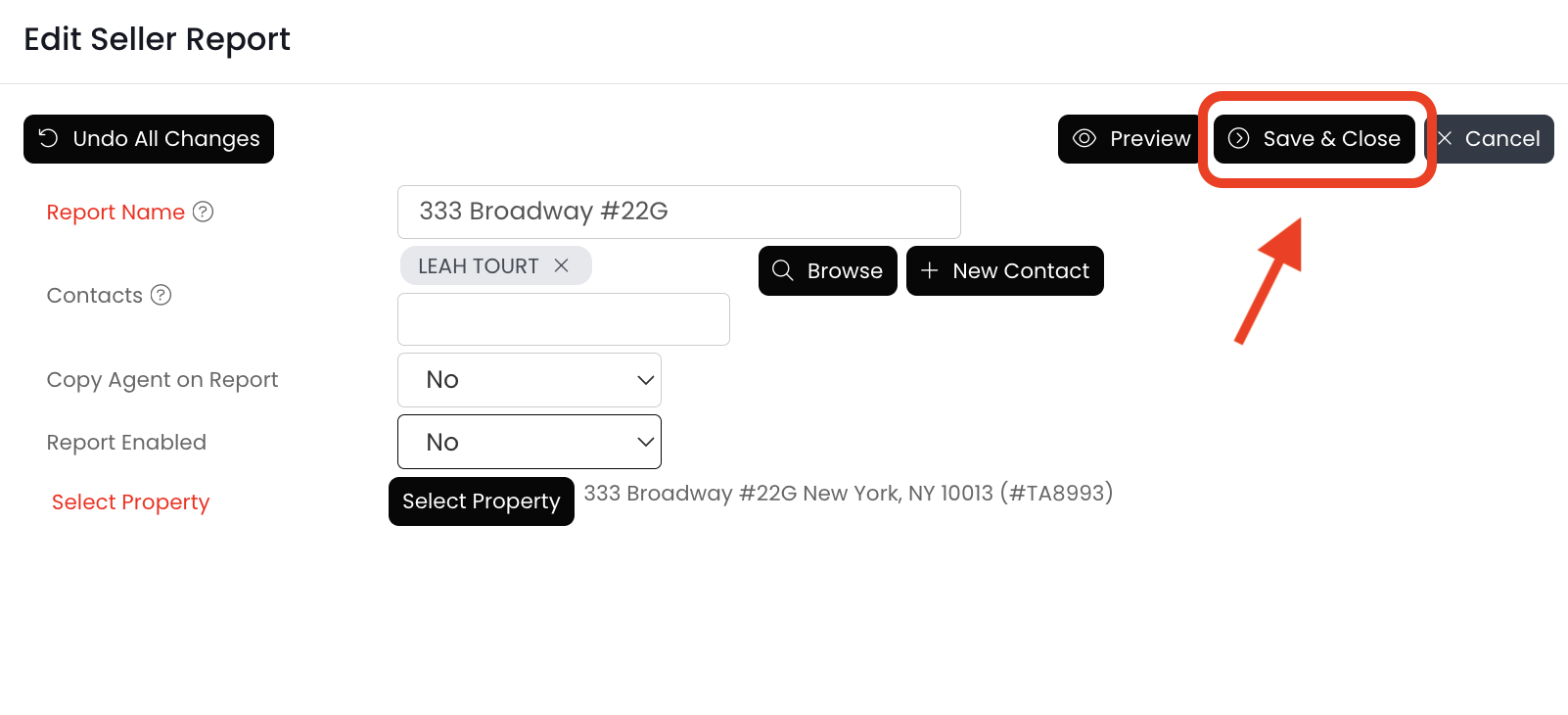
Use the "Report Enabled" field to manage the seller report emails to your client. Change the field to "yes" to enable the emails or "no" to disable the emails. Seller reports are emailed weekly on Thursdays!
Follow the steps below to ensure your client is NOT receiving these emailed reports:
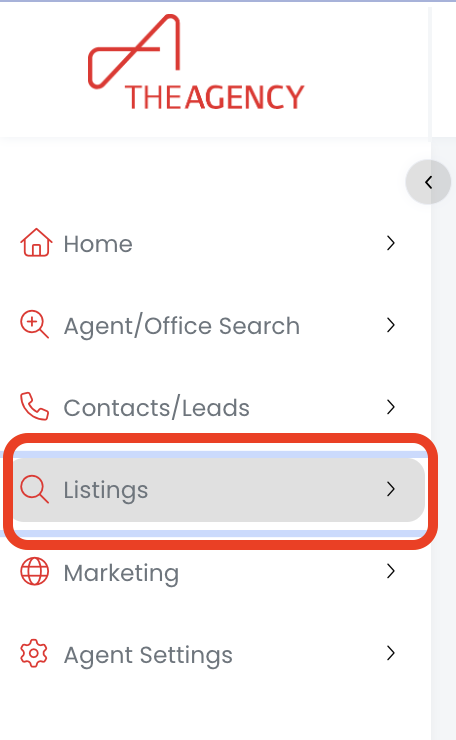
1.) Click on the Listings menu
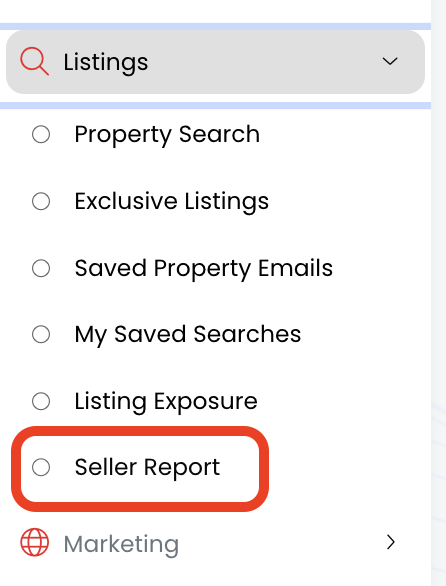
2.) Click on the Seller Report option
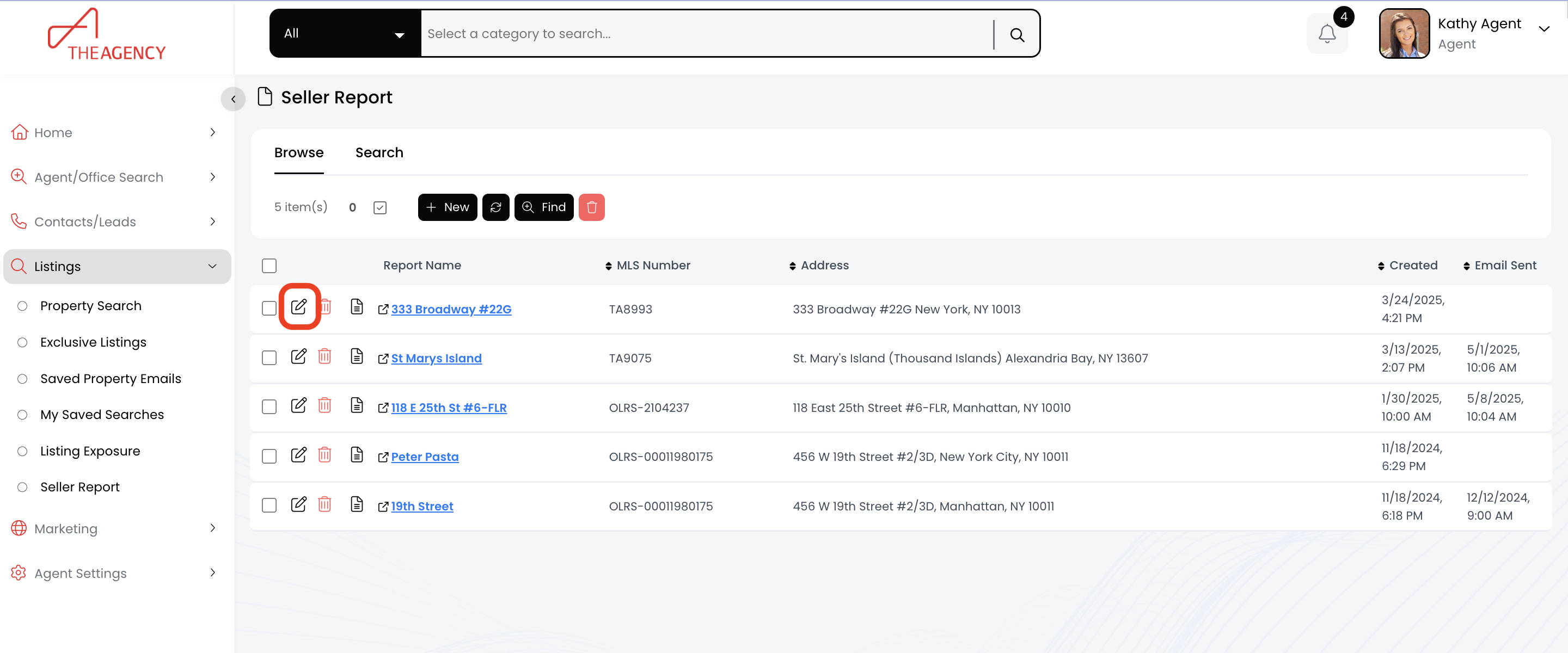
3.) Find the seller report you want to update, and click on the pencil icon
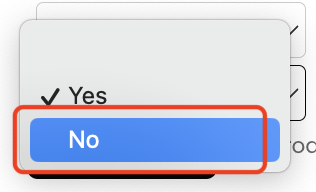
4.) Find the "Report Enabled" field and click on the current option
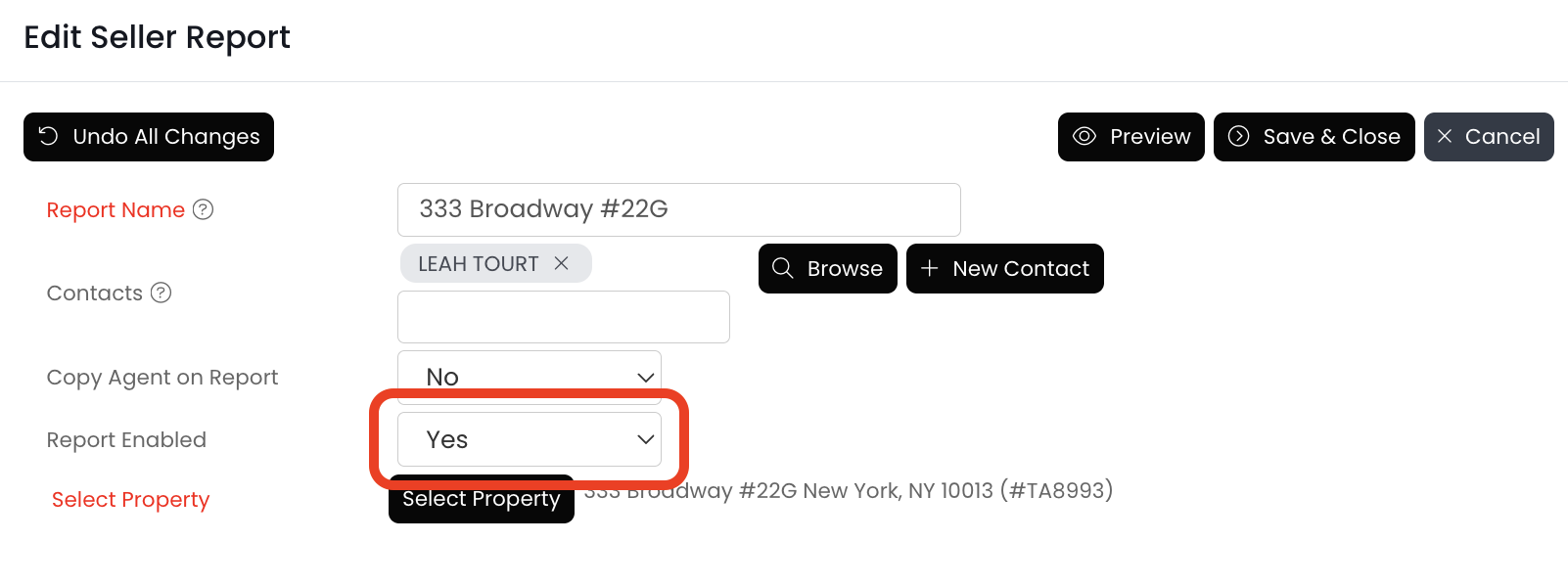
5.) Click on No
6.) Click on the Save & Close button
7.) Now your client will no longer receive these seller reports by email!

