



 56
56
First, find the deleted contact using the Deleted filter, and then click the undelete icon (looks like a circular arrow) to reinstate a deleted contact.
📺 Click here to watch the video tutorial 📺
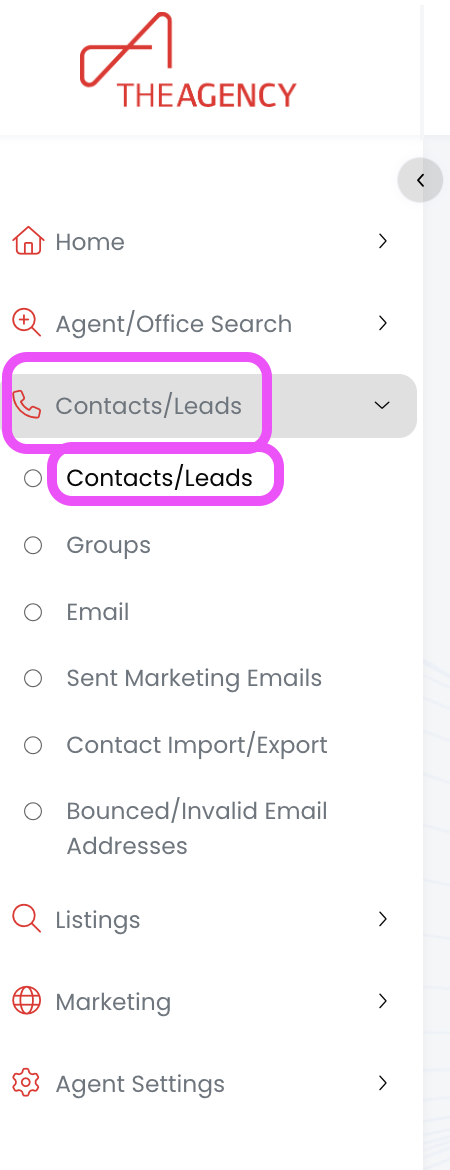
1.) From the left side menu, click on Contacts/Leads, and then click on Contacts/Leads again
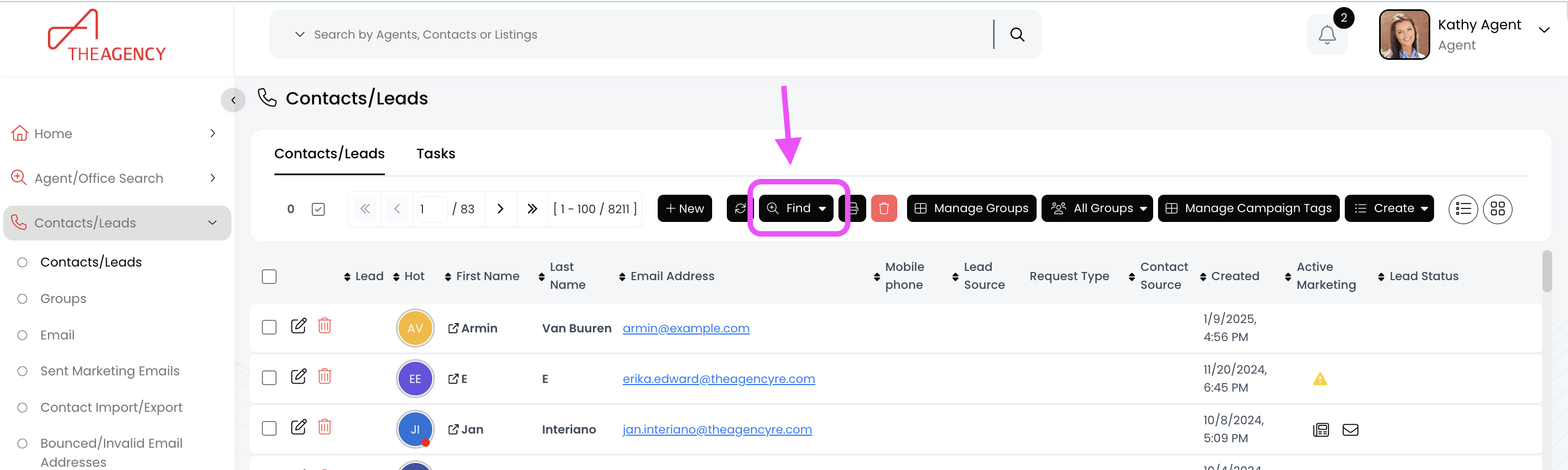
2.) Click on the Find button (top middle)
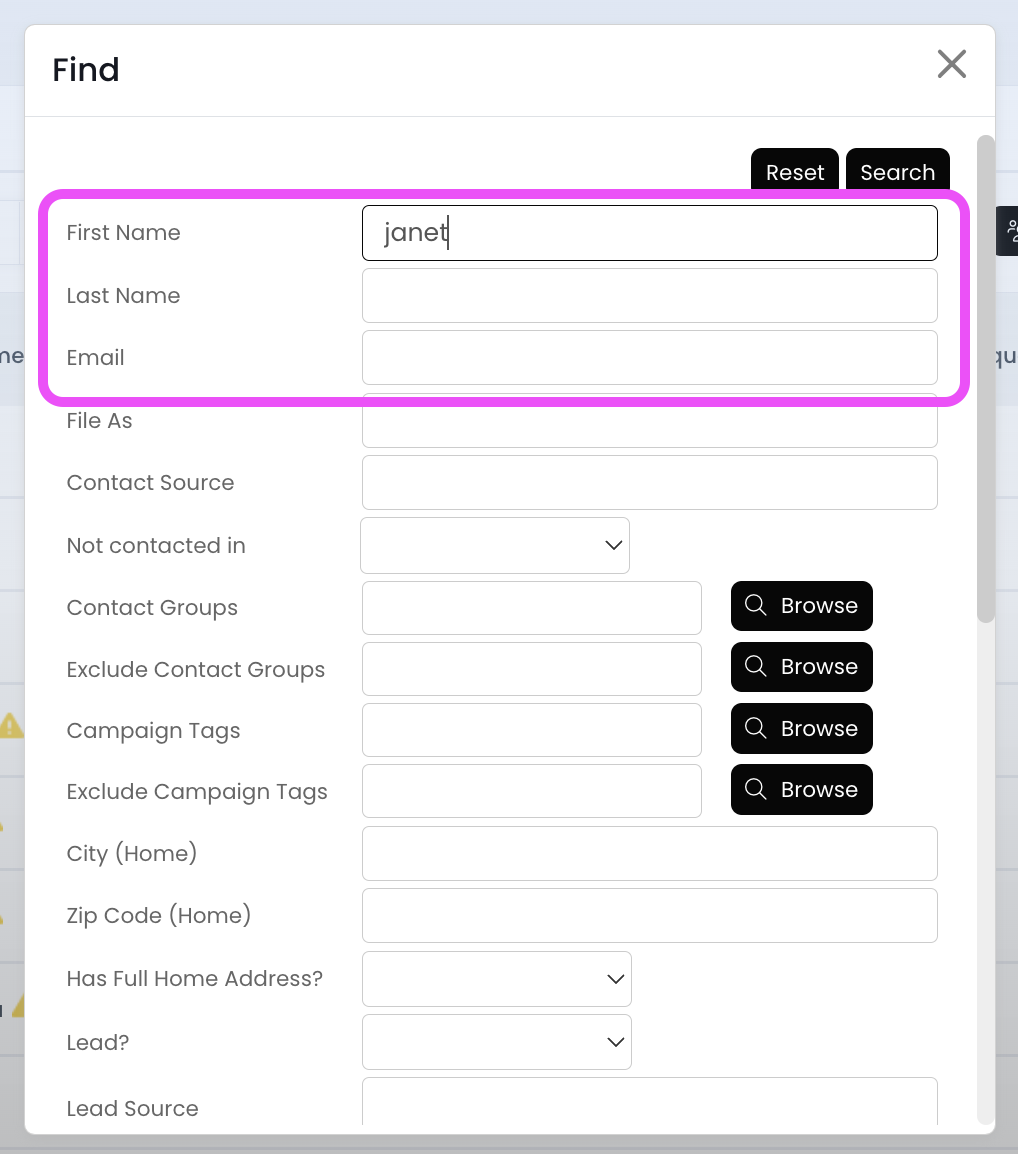
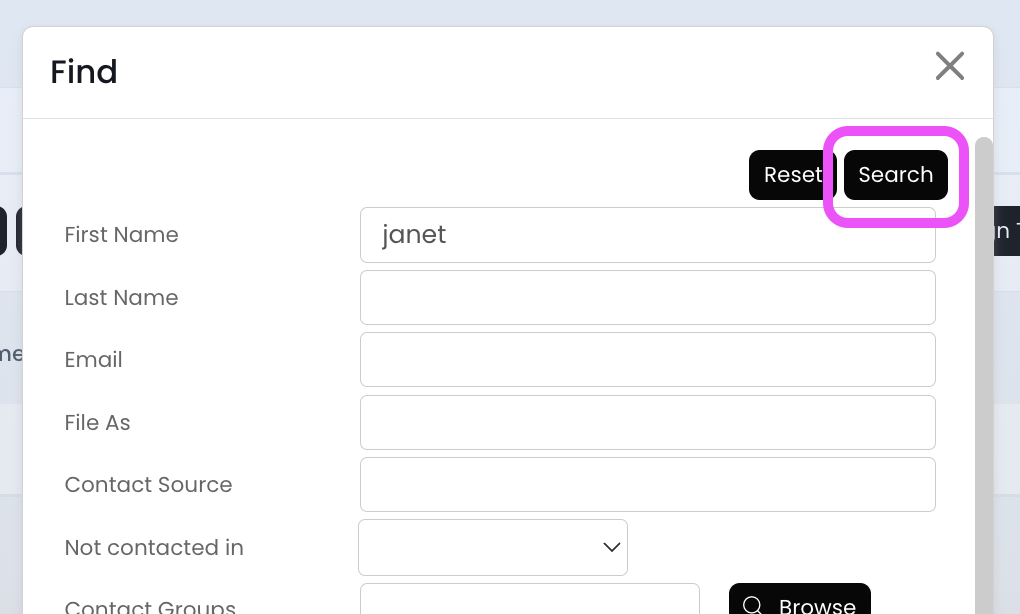
3.) Search for the contact by typing in their first name, last name, or email
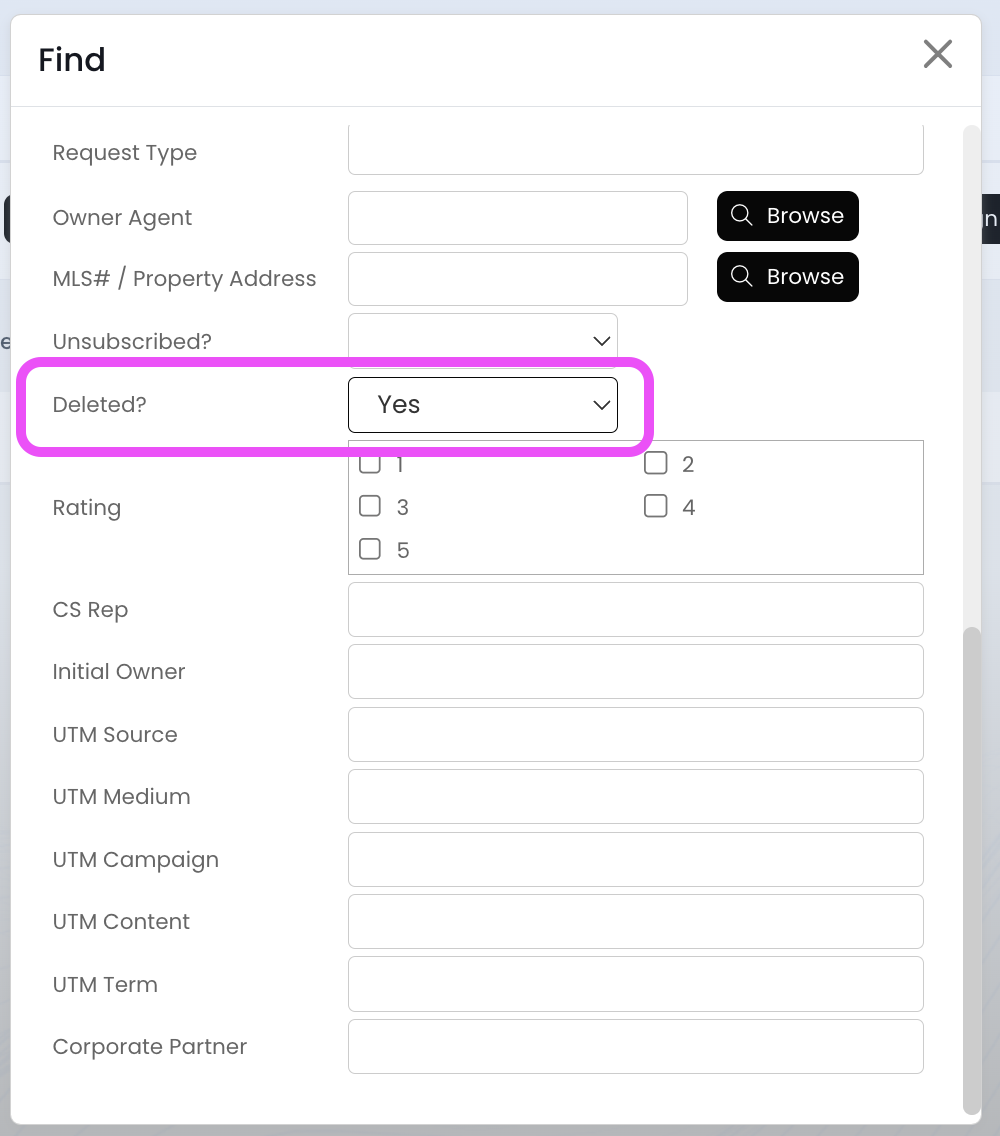
4.) Scroll down to the Deleted field and change it to Yes
5.) Scroll to the top and click on the Search button
6.) Click on the undelete icon
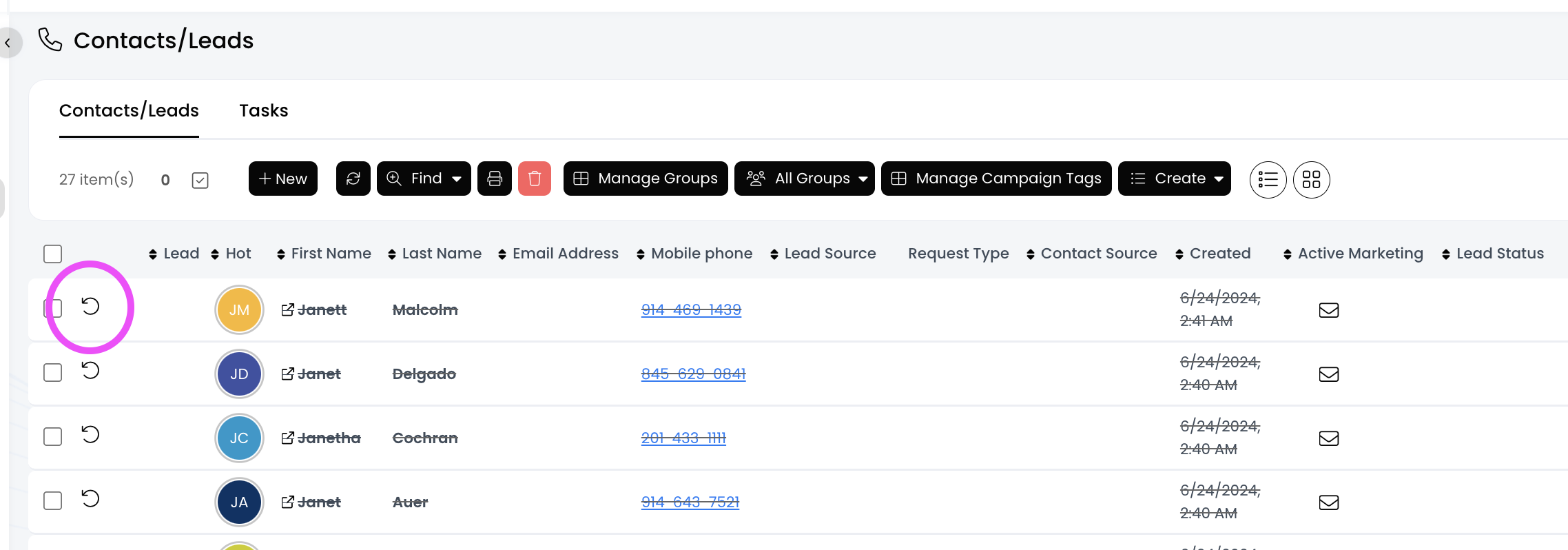
Now your deleted contact has been restored, and you will see them in your Contacts/Leads list once again!

