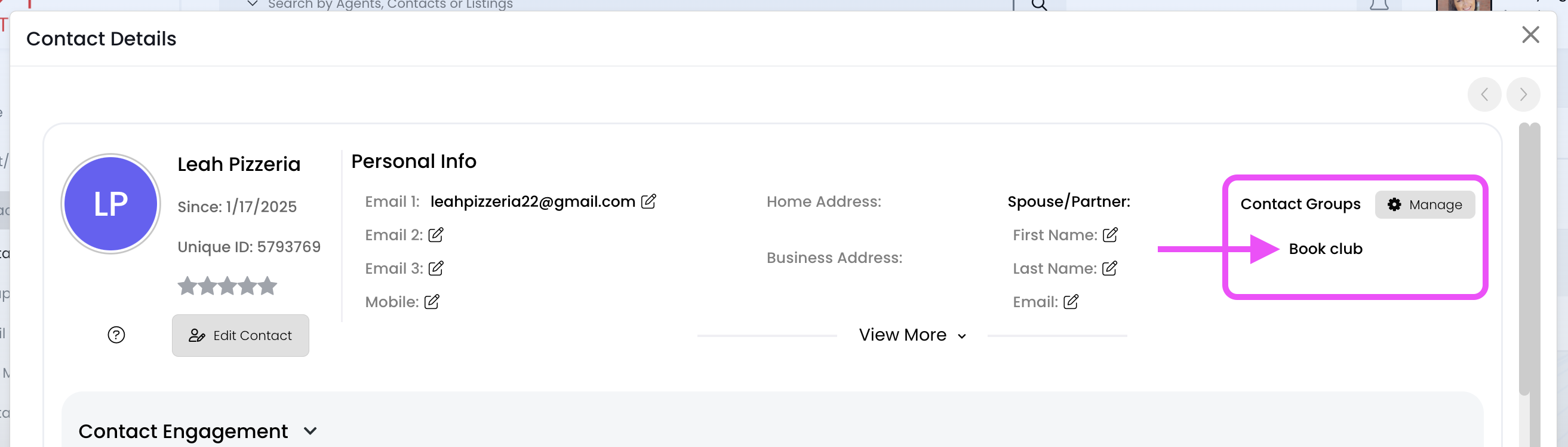
Groups: Add a Single Contact/Lead to a Group

May 29, 2025
 58
58
View the contact/lead, and use the "Manage" button to add them to one or more groups.
📺 Click here to watch the video tutorial 📺
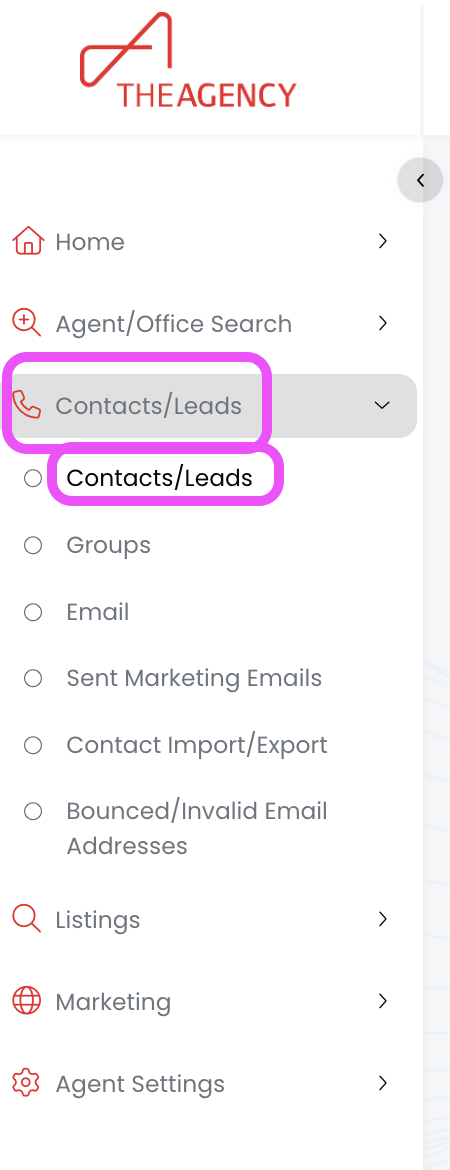
1.) From the left side menu, click on Contacts/Leads, and then click on Contacts/Leads again
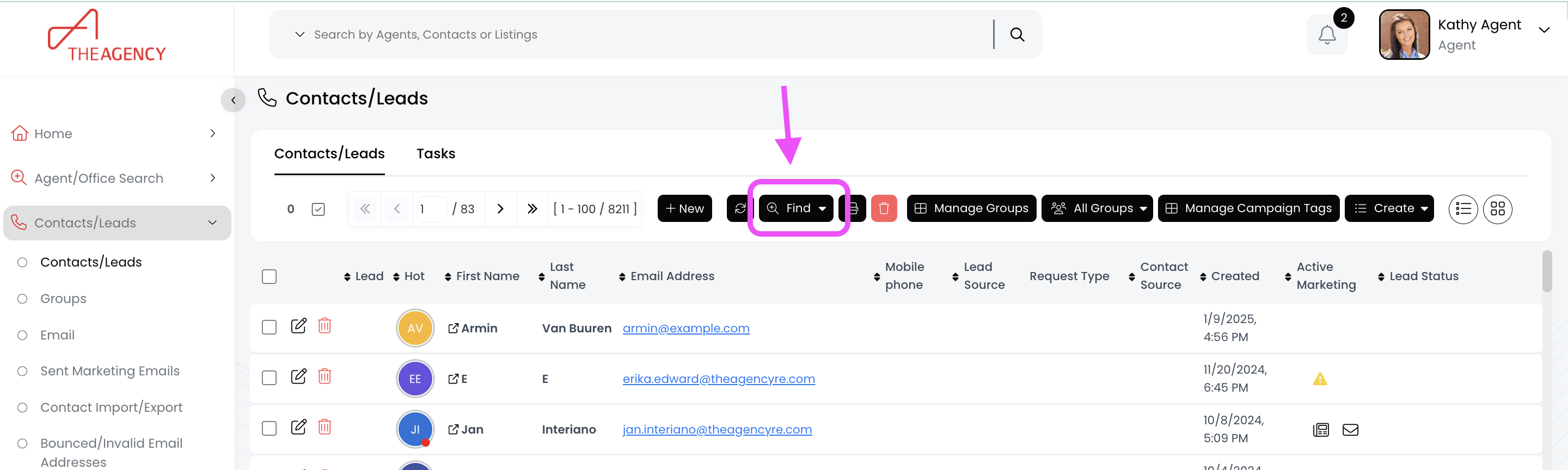
2.) Click on the Find button (top middle)
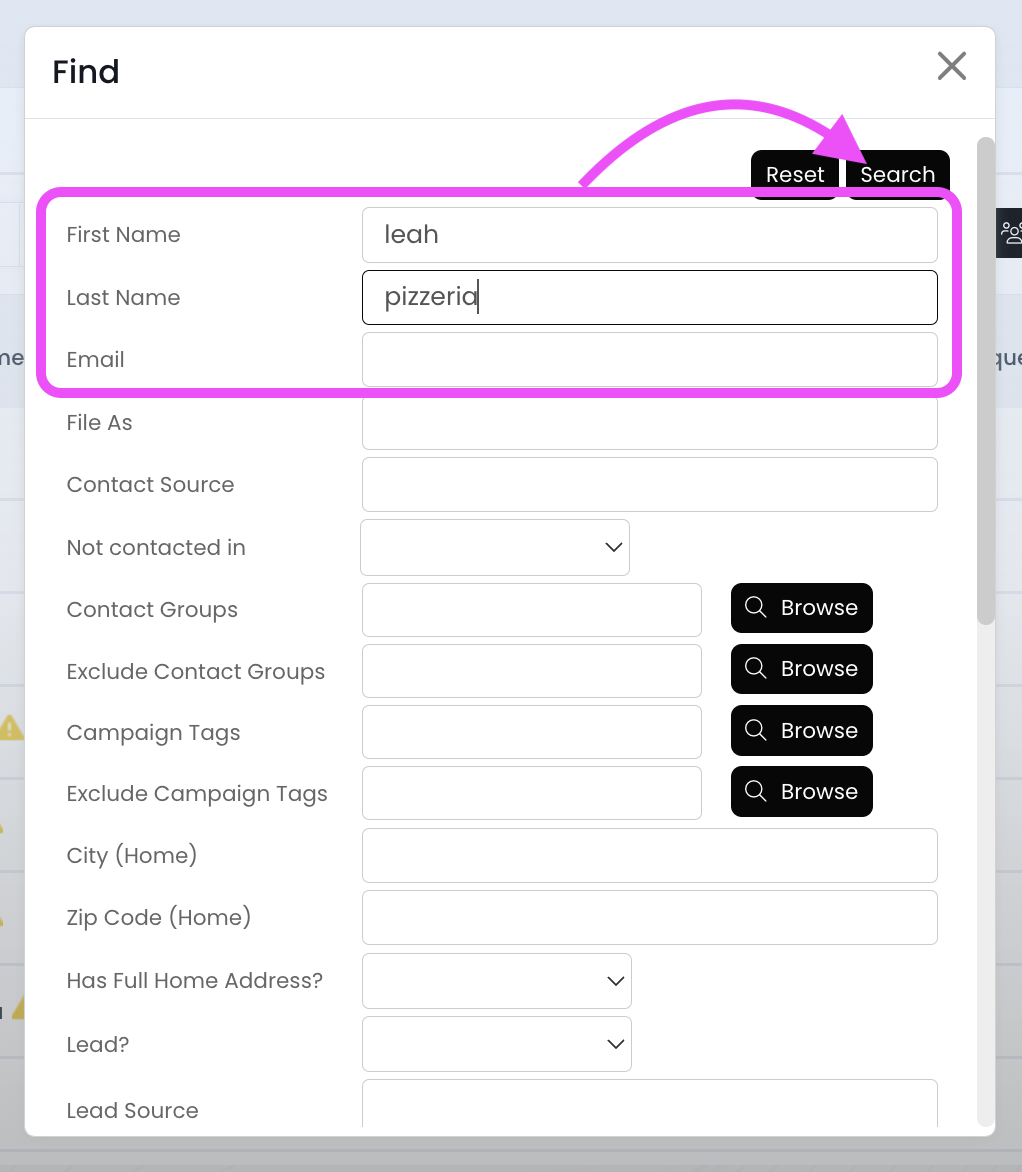
3.) Search for the contact using the first name, last name, or email fields and then hit Search
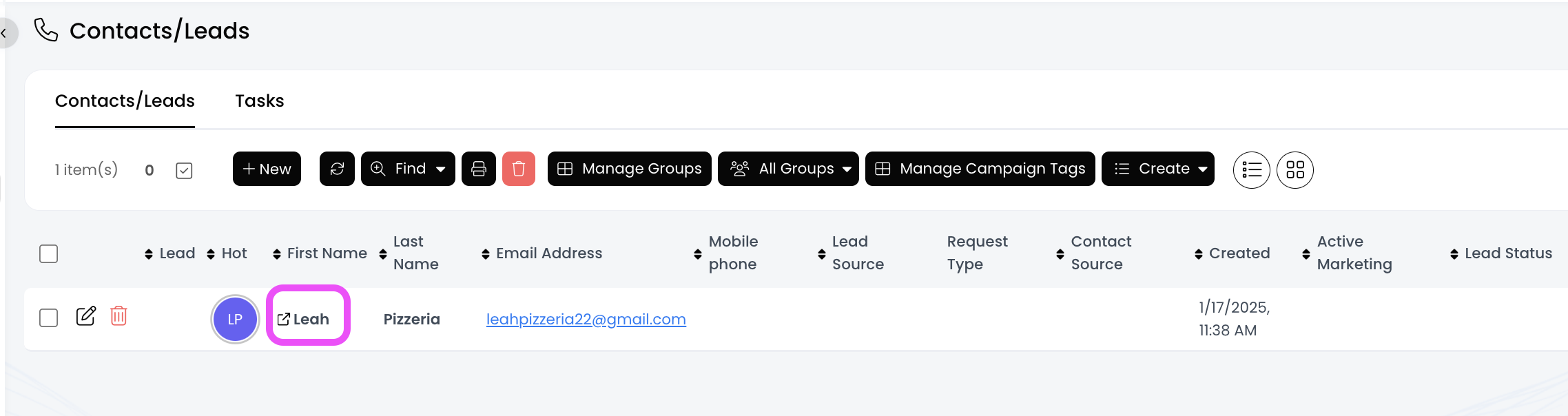
4.) Click on the contact's first name
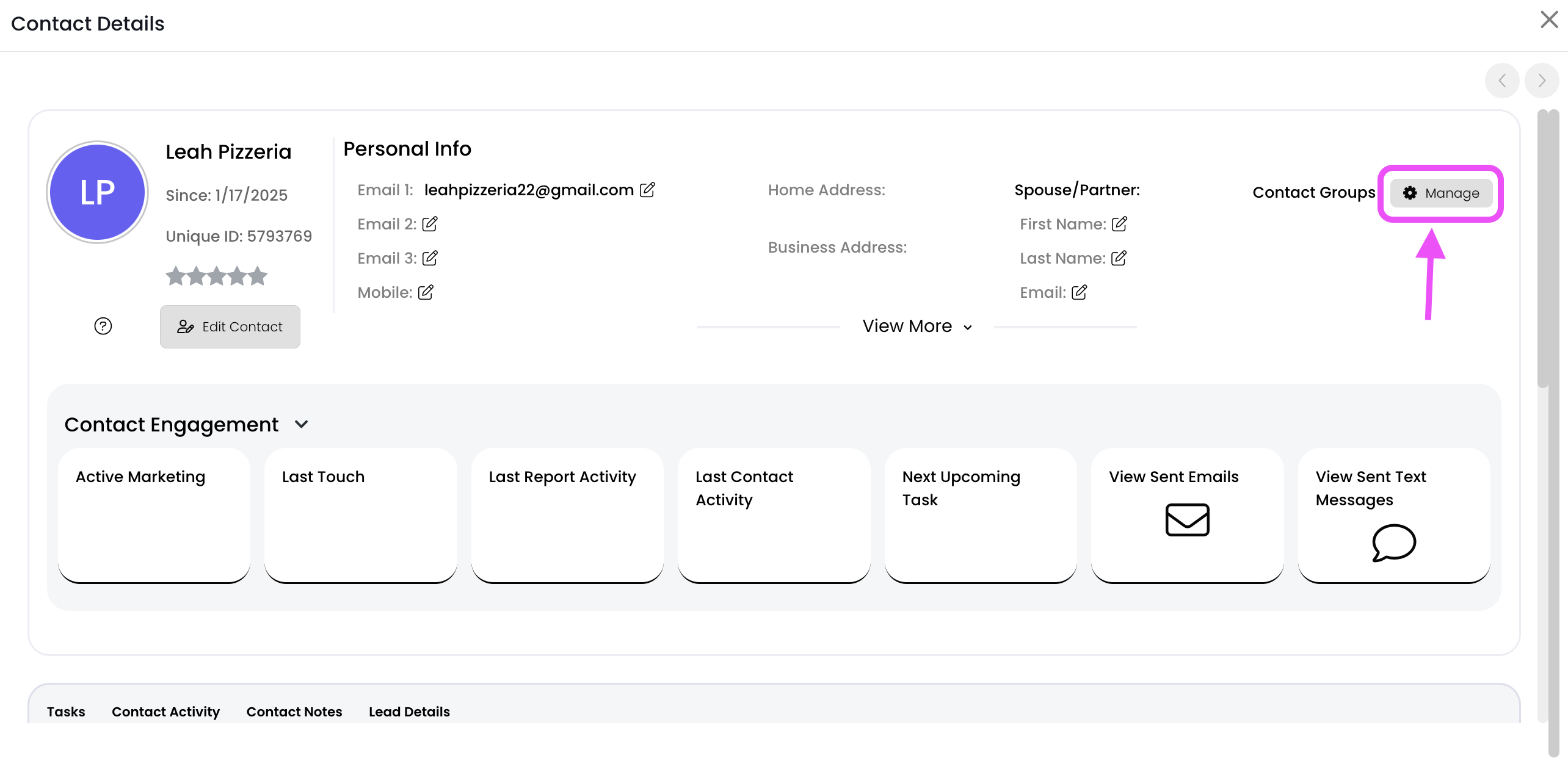
5.) Click on the Manage button (top right corner)
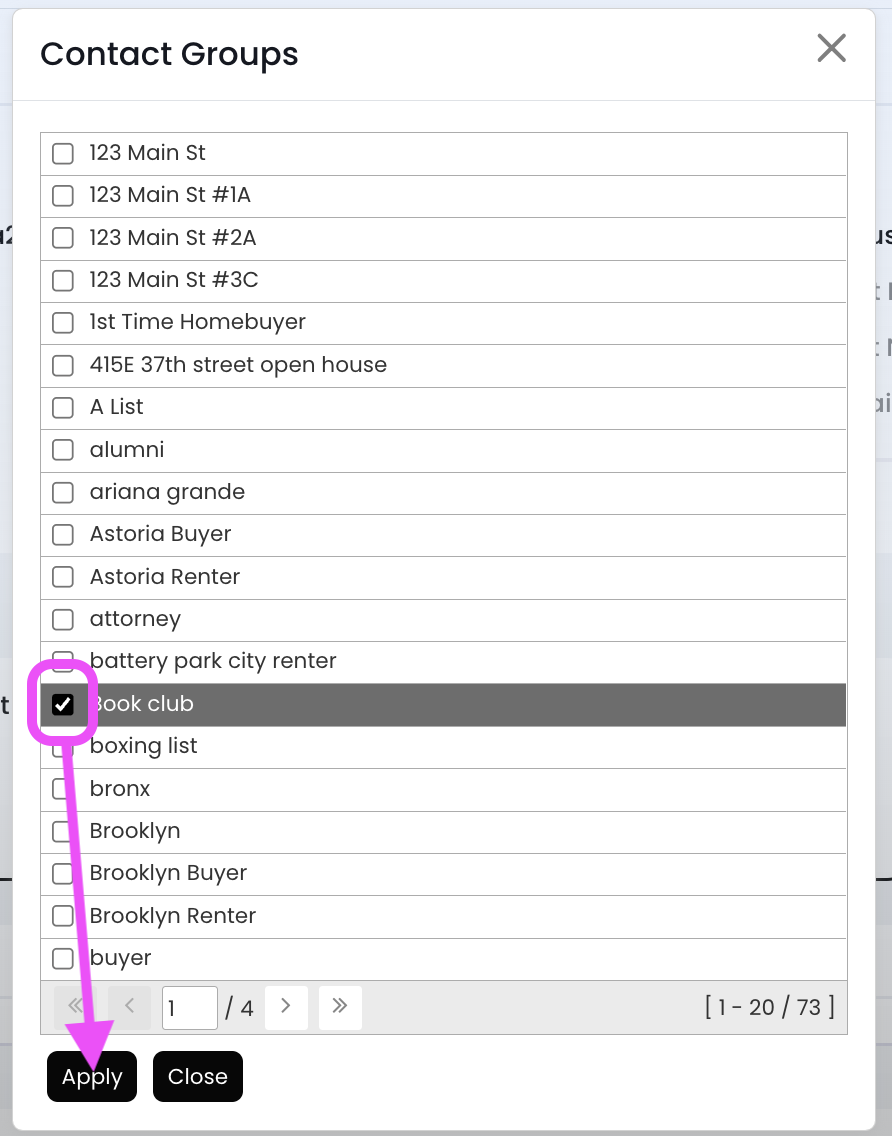
6.) Click the box to the left of the group name, and then click the Apply button
7. Now this person has been added to this Group, and you should see the Group name in the top right corner!