


Groups: Add Multiple Contacts/Leads to a Group

May 29, 2025
 12
12
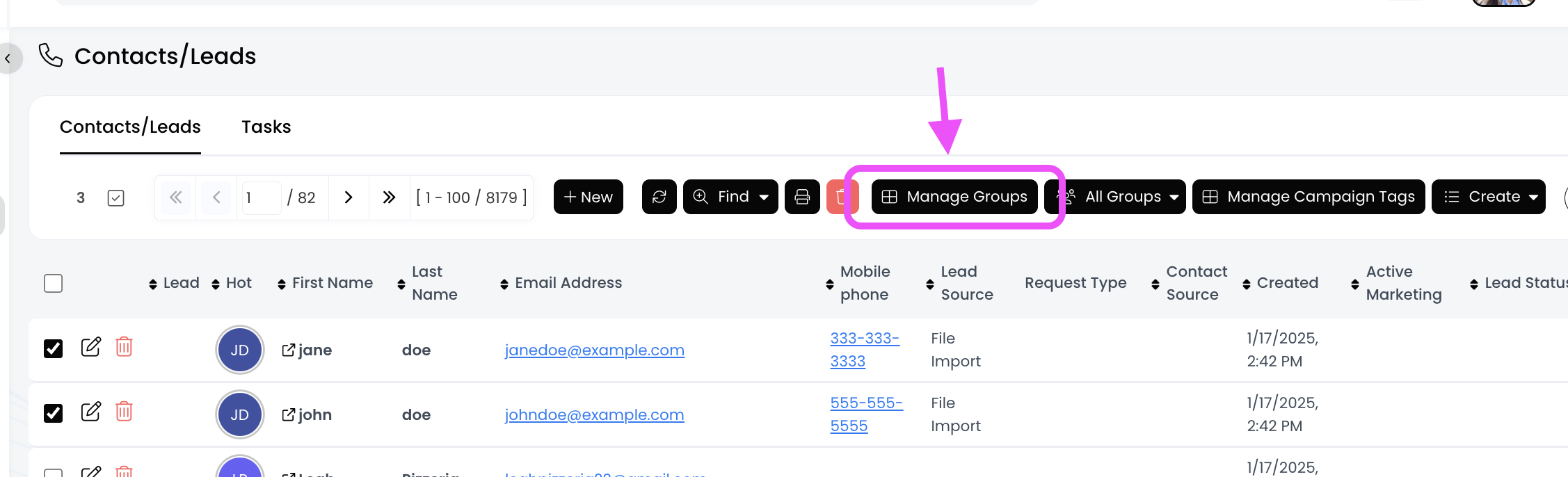
Select the contacts by clicking inside the boxes, and then click on the "Manage Groups" button to select the group(s) you want to add these people to.
📺 Click here to watch the video tutorial 📺
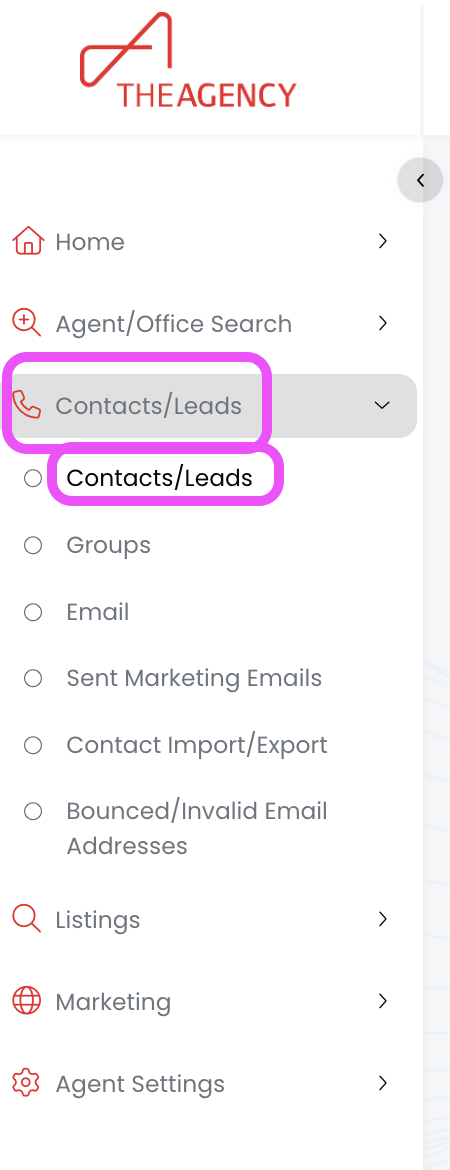
1.) From the left side menu, click on Contacts/Leads, and then click on Contacts/Leads again
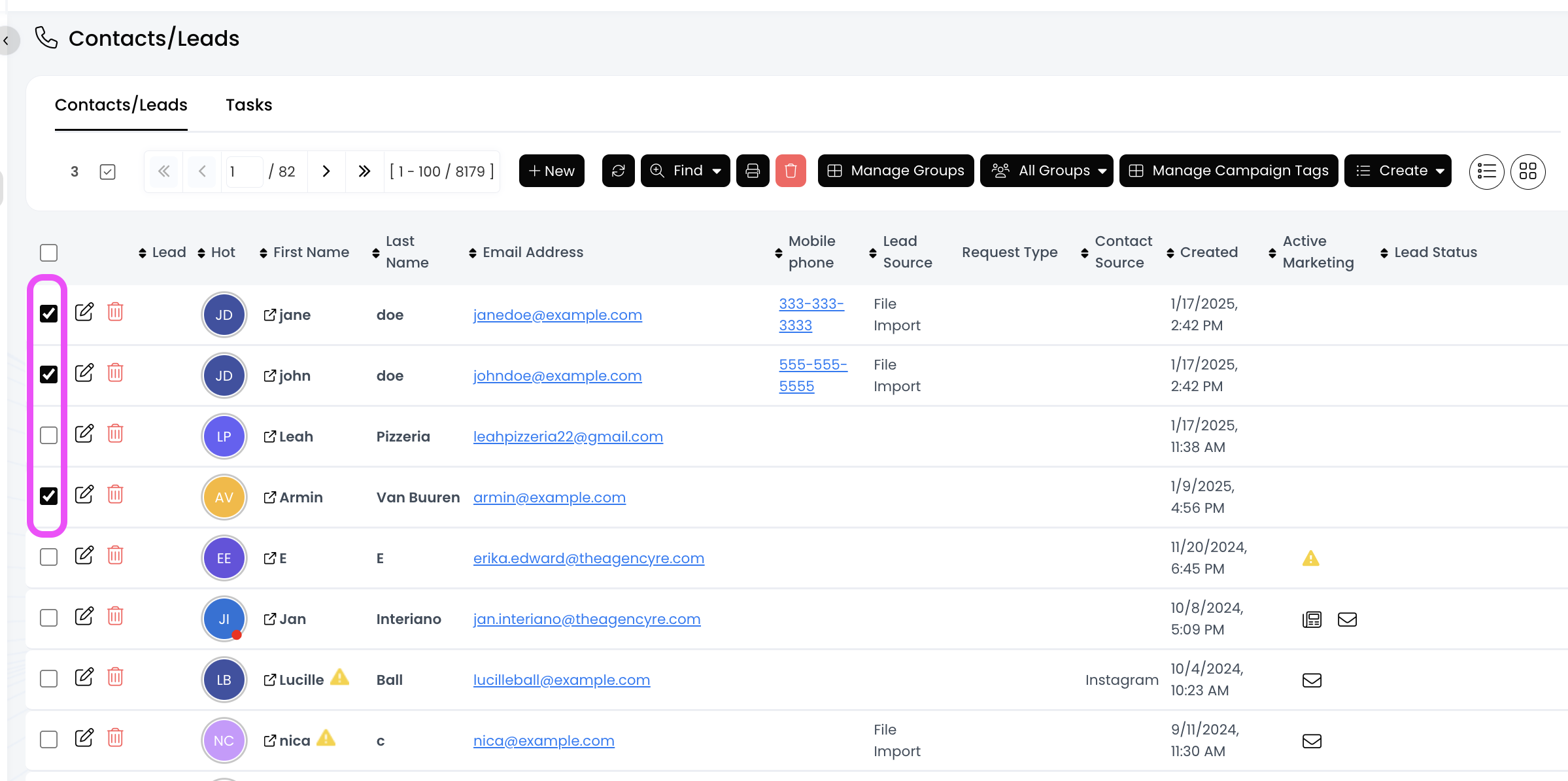
2.) Select your contacts by clicking in the box to the left of the contact's name
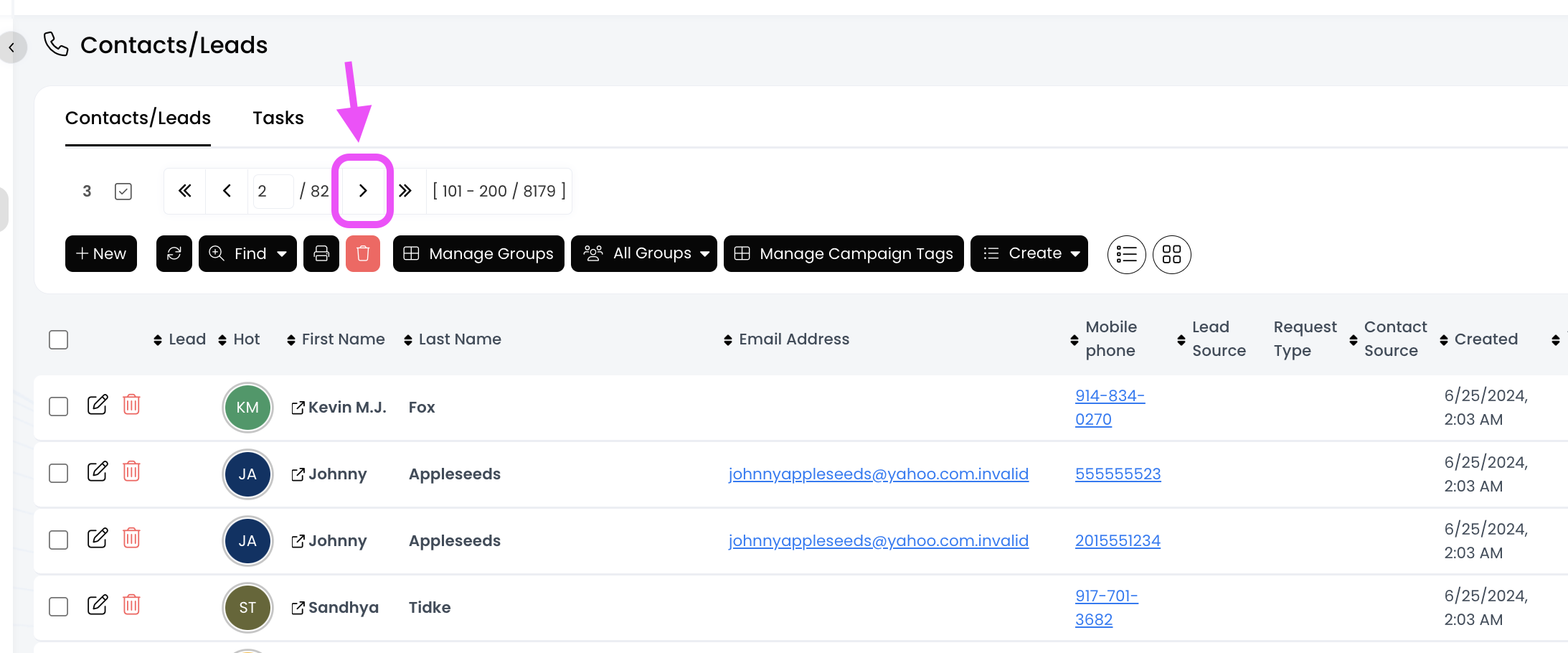
- Click on the right arrow at the top to move to the next page and select more contacts. All of your selections from previous pages will remain clicked.
3.) Click on the Manage Groups button
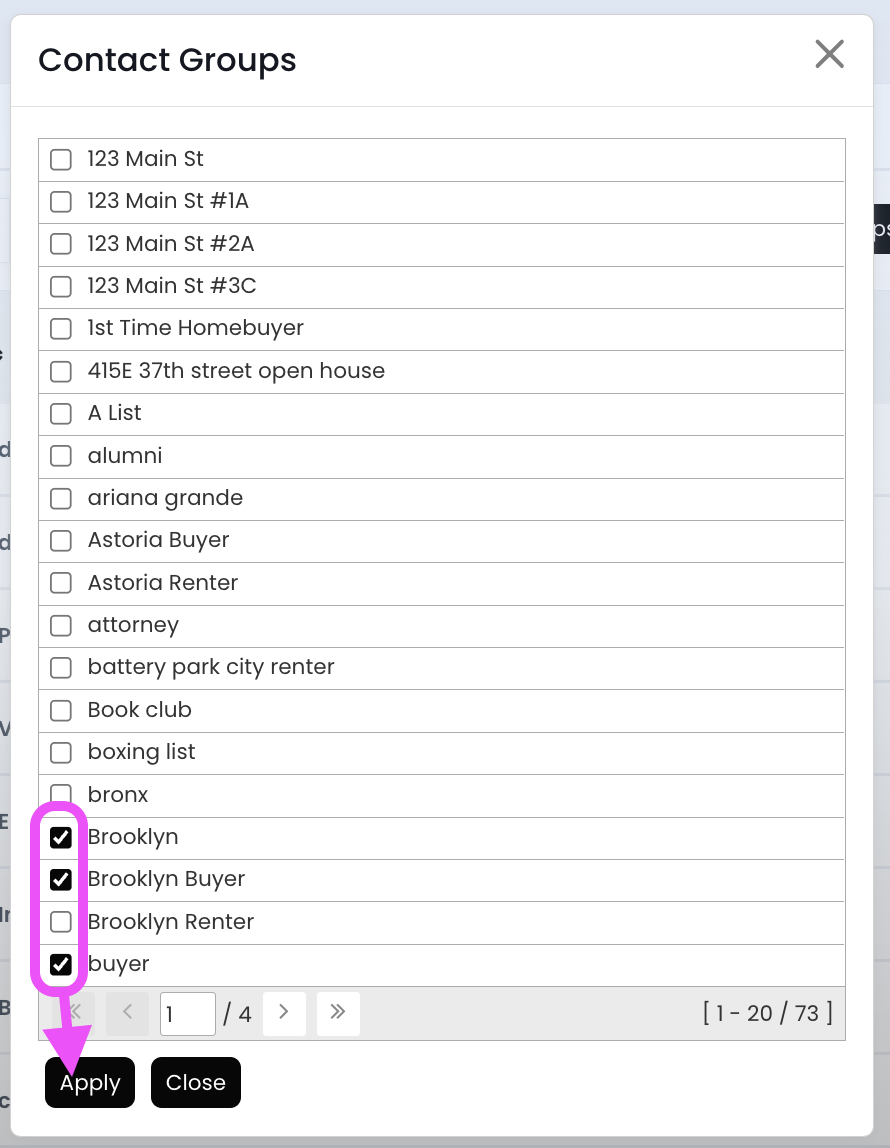
4.) Click the box to the left of the group name(s), and then click on Apply
- Click the right arrow (at the bottom) to move to the next page and select more groups. Selections from the previous pages will remain checked.
5.) Now these people have been added to the selected group(s)!

