



 42
42
It’s important to have an MLS ID linked to each agent’s profile. This ensures that their listings and past transactions are properly displayed on their agent page on the website. Without an MLS ID, listings and sales history will not load to their profile.
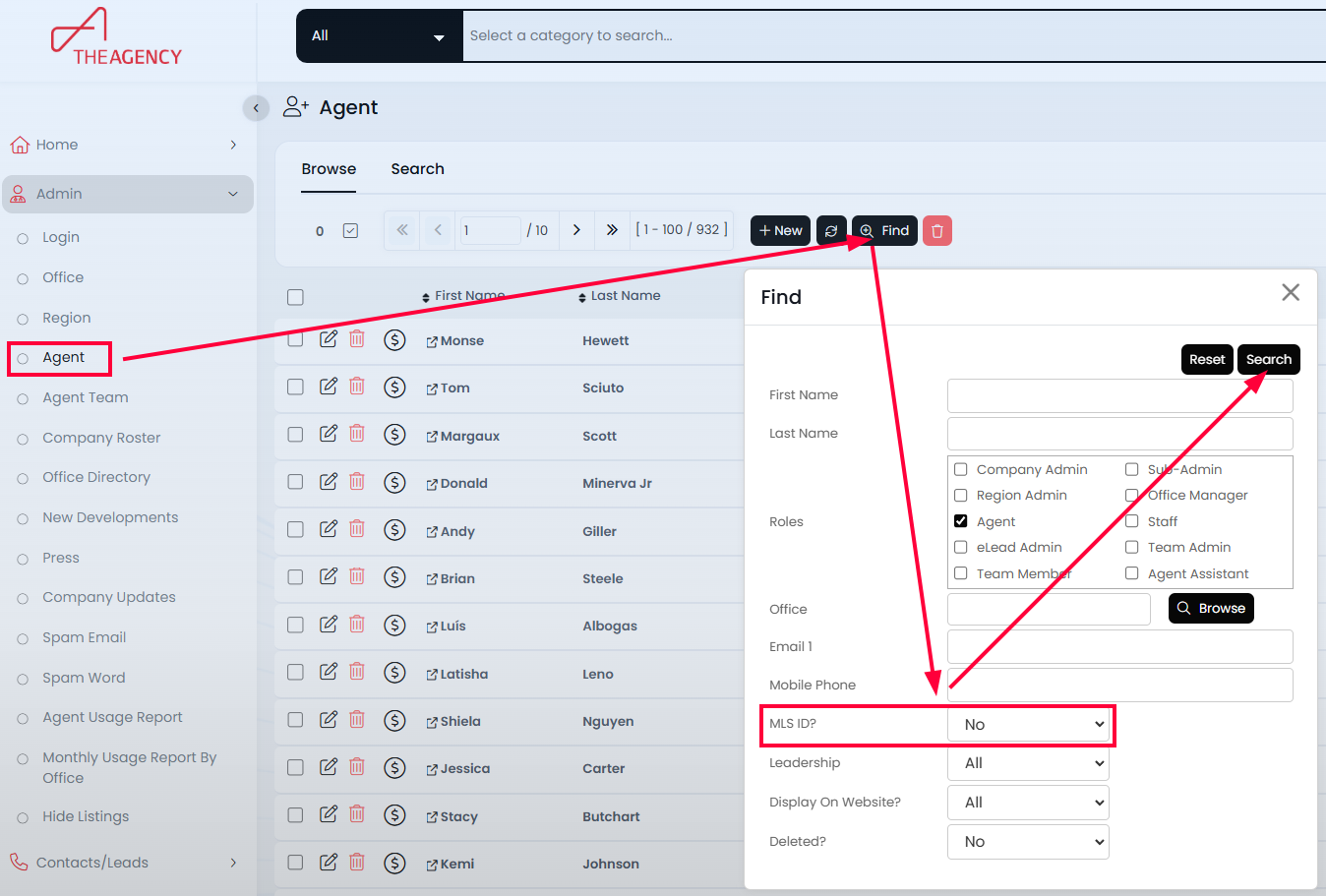
1. Go to Admin → Agent and click the FIND button.
2. In the Find window, set "MLS ID" to No. This will show all agents who do not have an MLS ID specified in their profile.
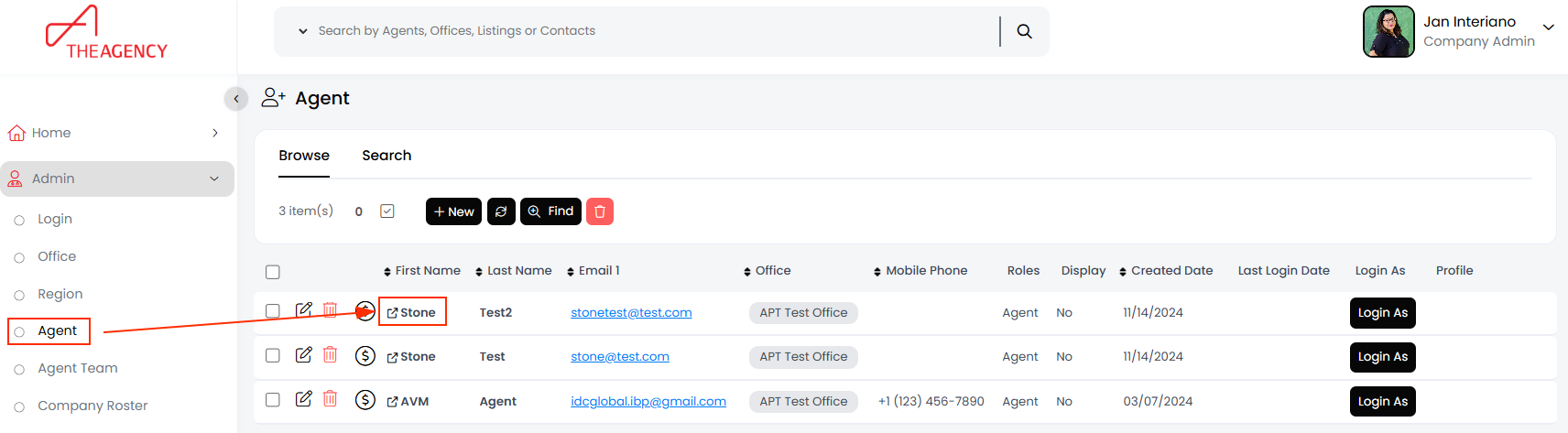
3. To add an MLS ID to an agent, Click on the agent’s first name (This step is crucial. Clicking the edit pencil opens a different window).
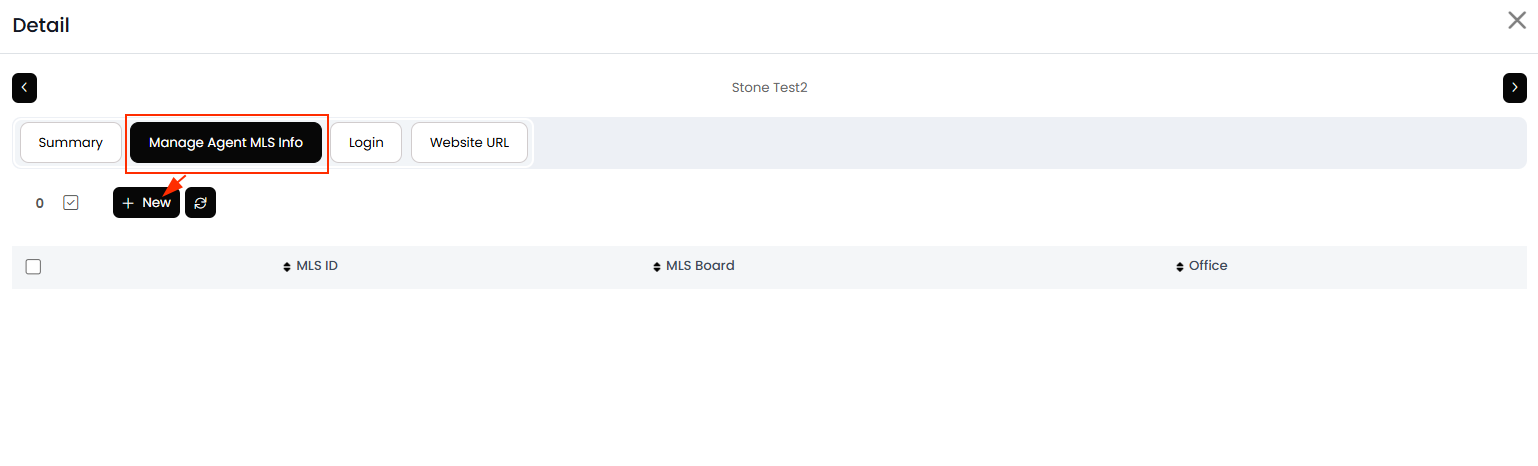
4. In the new window, navigate to the MLS ID tab and click NEW.
5. Select the agent’s MLS from the list and enter their MLS ID.
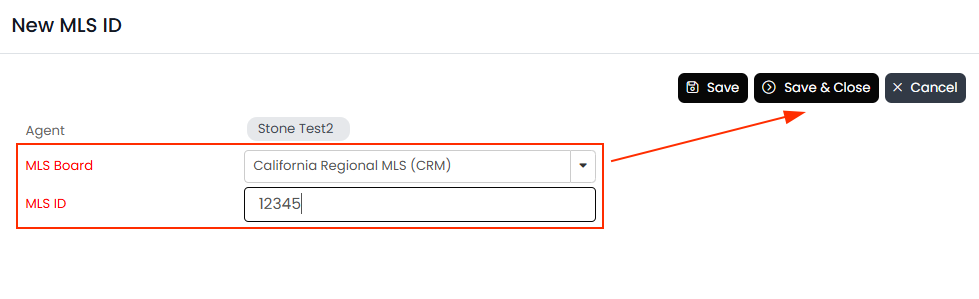
6. Click Save & Close.
The agent’s listings should begin appearing on their webpage within an hour, while past transactions may take a few hours to update.

